


Creating an attractive and informative timeline on your WordPress website can help you share your story, showcase project milestones, or display your company’s growth over time. With the Gutenberg Timeline block, you can do this easily in visually soothing ways.
But the default Gutenberg block editor doesn’t have the Timeline block. You need an additional plugin to do this. Today, you’ll find lots of plugins with which you can create stunning timelines. In this tutorial post, I will use the Ultimate Blocks plugin to explain the process.
So, let’s explore how to add the Gutenberg timeline block in WordPress. You will also learn how to use and make the best use of it. Keep reading!
Why Ultimate Blocks
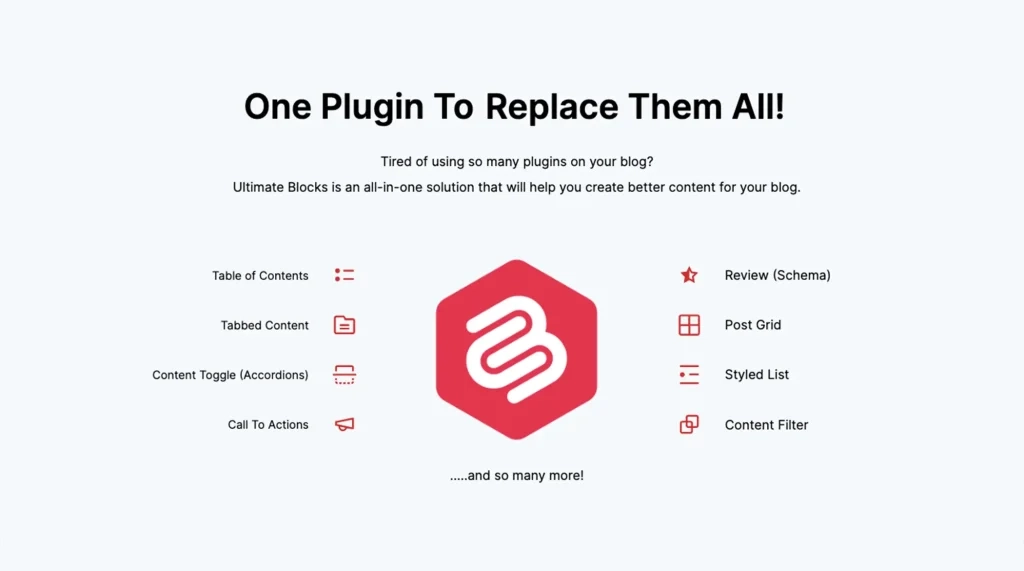
With 50,000+ active installations, Ultimate Blocks is one of the most popular block plugins for WordPress. It comes with 27 custom blocks, with which you can create various types of appealing content in the editor. This plugin is extremely great for content marketers.
It’s also useful if you want to design minimalistic web pages, avoiding traditional page builder plugins. Among the 27 custom blocks, there is a Timeline block that can help you display content both vertically and horizontally.
However, the Timeline block is reserved only for the premium version. But rest assured, you will never feel cheated after purchasing the premium version of this plugin.
Because every block it offers is versatile and will help you create and present different types of web-based content for a long time. Get both versions of the plugin by clicking the buttons attached below.
Once they are ready, start following the tutorial explained below. Here’s a thorough overview of the Ultimate Blocks plugin.
How to Add the Gutenberg Timeline Block in WordPress
Hope you have the Ultimate Blocks plugins installed and activated on your website. If so, you are ready to display your desired content on your web posts and pages in the timeline format. Let’s see how to
Step 01: Add the Timeline Block to the Editor
Open your desired post/page. Click the plus (+) icon on the editor. Type Timeline in the search box. Once the block appears, add this to the editor by clicking on it.

You’ll see the Timeline block has instantly been added to the editor. By default, the Timeline block appears vertically.

Learn how to add Google Maps to the WordPress editor.
Step 02: Add Content to the Timeline Block
Each item on the Timeline block allows you to add a title and a description. The description block uses the paragraph block by default.

You can add even different types of content to the timeline item. To do this, add a new block under the default paragraph block. Choose the block you want. For example, I have selected the Image block for this tutorial.

As I have selected the Image block, you can upload a new image from your local drive or choose one from your media library.


In the same way, you can add even more and more blocks to display different types of content, like Button, Video, Map, etc.

In the same way, add titles and descriptions to all items on the Timeline block. Hope you know how to add other types of content to the timeline. I am not showing it anymore.

Check this tutorial on how to create an icon box in WordPress.
Step 03: Add More Items to the Timeline Block
By default, the block allows you to add three items. But you can add as many items as you want to the block. To do this, select the entire block by clicking the Timeline icon on the toolbar.
Then, hit the Add item option on the toolbar. This will add a new item to the timeline.

You can see that I have added new items to the timeline block. I have done it in the same way as shown above.

Following the guide as mentioned above, add content to the new blocks as well that I have added to the timeline just a while ago.

Explore how to create tabs to organize content in WordPress.
Step 04: Configure Settings of the Timeline Block
Select the entire block again by clicking the Timeline icon on the toolbar. Next, go to the Settings tab on the right sidebar. You’ll find numerous options under the settings tab.
Things you can do from here are:
- Display the timeline vertically or horizontally
- Change the timeline position
- Items starting position, whether on the left or right

See how the timeline is displayed once the Timeline Position is changed.

See how the timeline is displayed once you select the horizontal format. Once you select the horizontal option, you’ll get some more options.
You can set how many items should be displayed per view on different device types. Also, you can select the Timeline Position.
Hope you can do these changes yourself.

By scrolling the section a bit more, you can configure the connector options, their position, numbering, and size.

Step 05: Configure Visibility Control and Animation
In addition to those options discussed above, you can configure the Visibility Control and Animation options for the Timeline block.
- The Visibility Control option lets you display/hide this block from specific types of users. You can also schedule the block when it should automatically appear and hide based on time and other conditions.
- Ultimate Blocks offers 50+ animation effects to each of its blocks. You can select any animation for the Timeline block as well.

Visit this post on how to create filterable portfolio in WordPress.
Step 06: Stylize the Gutenberg Timeline Block
Now, come to the Styles tab on the right sidebar. From here, you can set colors for different parts separately from the Timeline block.
Also, you can add padding, margin, and radius for the block by scrolling the tab.

Hope you can do all these changes yourself.
Wrapping Up!
Hope you enjoyed this tutorial. However, for the best results, keep your timeline clean and well-organized. Use short titles, clear dates, and simple descriptions for each step or event.
Try to follow a consistent design style, such as matching icons, colors, or fonts, to make your timeline look more professional. Also, preview your timeline on both desktop and mobile devices to ensure it looks good everywhere.
With these small but effective practices, you can make your timeline block not only informative but also visually attractive. Explore more tutorials and guides on WordPress.

