


When you build content with the Gutenberg editor in WordPress, you may often feel the need for more flexibility and options. The default blocks are useful but limited. That is why many website owners look for block plugins to add extra features. One of the popular choices is Ultimate Blocks.
Ultimate Blocks is designed to help bloggers, marketers, and content creators make their posts more engaging. It offers a collection of custom Gutenberg blocks such as content toggles, call-to-action boxes, review blocks, and more. With these tools, you can present information in a clean and interactive way without touching code.
But like any other plugin, Ultimate Blocks has both strengths and weaknesses. Some users find it very helpful, while others feel it has room for improvement. In this post, I will explore the pros and cons of Ultimate Blocks to see whether it is the right block plugin for your Gutenberg editor.
What Is Ultimate Blocks and How Does It Work?
Ultimate Blocks is a Gutenberg block plugin. It basically extends the default block library of the editor by adding new custom blocks that help you create interactive and engaging content.
With this plugin, you can use blocks like content toggle, review box, table of contents, tabbed content, styled list, call-to-action, and more. These blocks are designed mainly for bloggers, marketers, and website owners who want to improve the way they present information.
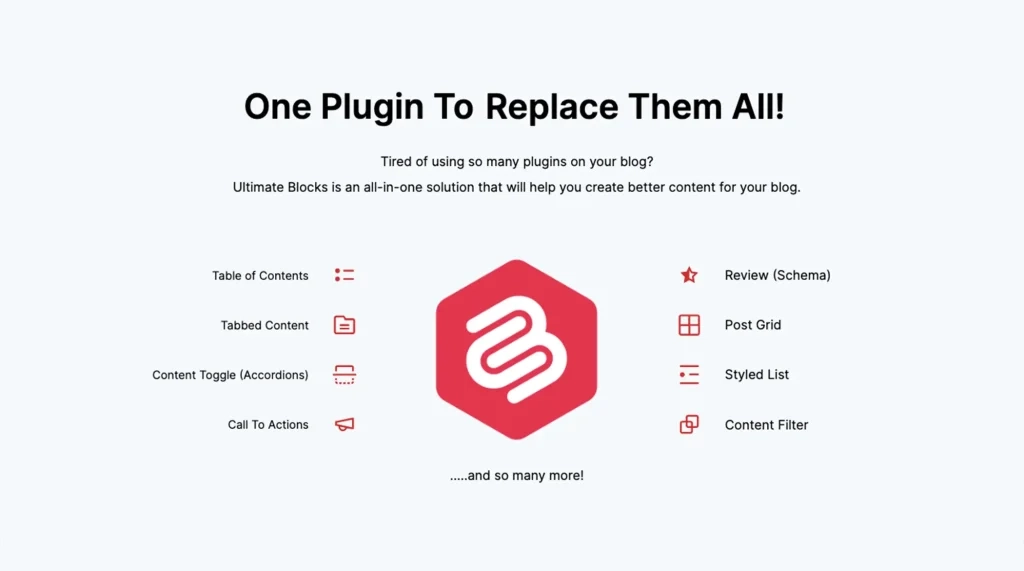
The plugin works just like the regular Gutenberg blocks. After installing and activating Ultimate Blocks, you will see its custom blocks available in your editor. You can add them to any post or page directly from the block inserter.
Each block comes with its own settings and styling options, so you can customize the look and feel without using extra CSS. This makes it simple for anyone, even without technical skills, to design content that stands out.
Comparing Ultimate Blocks to Other Gutenberg Block Plugins
When picking a Gutenberg plugin, it is smart to see how it compares to others. Ultimate Blocks shines for simple content needs, but rivals like Spectra, Essential Blocks, and Kadence Blocks offer more options for bigger sites.
To make this easy to read, here is a simple table that breaks down key points. We looked at block count, ease for beginners, speed impact, and best uses. This way, you can quickly spot what fits your style.
Plugin |
Block Count |
Best for |
Price |
Ultimate Blocks |
26+ |
Bloggers & Content |
$49/year |
Spectra |
30+ |
Landing Pages & E-commerce |
$69/year |
Essential Blocks |
50+ |
Blocks & Advanced Layouts |
$49/year |
Kadence Blocks |
25+ |
Custom Designs & Themes |
$69/year |
All Blocks of Ultimate Blocks
As of today, Ultimate Blocks has 27 custom blocks for the Gutenberg Block Editor. You can see the blocks in the gallery attached below. Hope this will give you a quick idea of what you can do with this plugin.


Here’s an overview of all blocks of the Ultimate Blocks plugin.
Pros of Ultimate Blocks
I am now in the main part of this post. Here, you’ll learn the key benefits and pros of using the Ultimate Blocks plugin on your website. Hope this will enhance your knowledge and help you make a decision right away. Keep reading!
1. Offers 27 Custom Blocks
You can see that we’ve shown the block names just above this section. These blocks give you extra options that the free WordPress blocks don’t provide. For example, the Tabbed Content block helps you show information in tabs, so visitors can click and view without too much scrolling.
The Content Filter block allows readers to sort posts by topic. Because of this variety, you don’t need many other plugins, which helps keep your site clean and fast. These blocks can cut your design time in half due to their extreme flexibility.
2. Versatile and Multi-Functional Blocks
Most blocks of the plugin are versatile and multi-functional. For example, the Styled Box is not just a plain box. It lets you add text, images, and buttons inside, and also style it with your brand colors. This means you don’t have to install many plugins for different tasks.
The Expand block is another good example. It hides long text behind a ‘Read More’ link and shows only a preview at first. This is great for FAQs or long guides. Similarly, it has many other multi-functional blocks, like Timeline, Tabbed Content, Content Filter, Image Slider, etc.

Here’s a detailed review of the Spectra blocks plugin.
3. Schema Markup Integration
Schema markup is a special type of code that helps search engines understand what your content means. Ultimate Blocks includes schema in blocks like Review and How-To. This means Google can show rich results, such as star ratings or step-by-step guides, directly in search results.
This feature improves your chances of getting more clicks without doing extra setup. For example, if you add pros and cons to a review post, the plugin automatically adds schema tags for SEO. It is a hidden benefit that works quietly in the background but makes your content stand out.
4. Native Settings and Stylization Options (Beginner-Friendly)
Ultimate Blocks is very beginner-friendly because the Settings and Stylization options for each block are almost similar to the default editor. The plugin won’t confuse you with too many new configuration options. You can easily change colors, fonts, and spacing using sliders inside the editor.
If you want a button that glows when someone hovers over it, you can do it just from the Styles tab. The Advanced Heading block also lets you choose heading levels (H1–H6), add background colors, and align text with just a few clicks.

5. Great For Bloggers and Content Marketers
Bloggers and marketers find this plugin very helpful because it focuses on content creation and sharing. For example, the Post on X block turns important sentences into shareable quotes for X (Twitter). The Social Share block adds sharing buttons for Facebook, Pinterest, and other platforms directly inside your posts.
Marketers can also use the Countdown block to create urgency for special offers and the Testimonial block to show customer feedback with photos. These features can make your content more engaging and interactive.
Explore a detailed review of Essential Blocks.
6. 100% SEO-Friendly
Every block in Ultimate Blocks is created with SEO in mind. It avoids adding heavy or messy code that can slow down your site. Instead, it adds clean schema markup (in some blocks) and lightweight code to all blocks.
For example, the Table of Contents block automatically links all your headings, which makes it easier for Google to crawl your page. Faster loading speed and structured content mean better chances of ranking higher in search results.

7. Includes 50+ Animation Effects
Ultimate Blocks also comes with over 50 animation effects that can make your website more lively. You can make a slider fade in, a counter spin as numbers go up, or add smooth transitions to buttons. The animations are lightweight, so they don’t slow down your site.
For example, you can animate the text in your blog header so it slides in when the page loads. Fun animations can make your site more engaging than static designs.
Take a look at the pros and cons of the Gutenberg Block Editor.
8. Lets You Schedule Blocks
Another helpful feature is block scheduling. You can set specific blocks to appear or disappear at certain times. For example, you can schedule a holiday discount banner to appear only during the season. The Countdown block works well with this, showing the time left for an event or offer.
Bloggers also use scheduling to show teaser posts before launches, building excitement. This feature saves you from editing content manually every day, as the plugin handles it automatically.

9. Active Development and Support
Ultimate Blocks is actively updated by its team, which means new features and fixes are released regularly. In 2025, the team introduced better icons and sticky block options based on user feedback. Free users get support through forums, while Pro users can get quicker help through a ticket system.
Many users prefer this plugin because it is updated often and does not feel abandoned. Regular updates also mean your site stays secure and compatible with WordPress.
10. Responsiveness and Visibility Control Options
Visibility control lets you choose when and where to show certain blocks. For example, you can display a promotional banner only on the homepage or hide a form for logged-in users.
You can set these rules easily from the block settings, without adding code. This feature helps you personalize content for different audiences.

Check the best notification bar WordPress plugins.
11. Easy to Add Custom CSS
If you want more control over your design, Ultimate Blocks also allows you to add custom CSS to individual blocks. You don’t have to edit your whole site’s stylesheet. Instead, you can paste simple CSS rules directly in the block settings and see changes live.
Beginners can copy styles from tutorials, while advanced users can design custom effects. This flexibility is great because it grows with your skills. Today, Custom CSS coding has been super easy due to generative AI.
You can ask tools like ChatGPT, Grok, Perplexity AI, or others to write code based on your demand. Once the code is generated, just copy-paste it to the Custom CSS option and see if it enables your desired functionality in the block or not.

Cons of Ultimate Blocks
Now, it’s time to cover the limitations of the Ultimate Blocks plugin. I will try my best to be absolutely honest in this section. Hope the information I am providing will help you in the future. Let’s explore the cons of Ultimate Blocks.
1. No Template Library
Ultimate Blocks does not include a large library of ready-made templates. This means you often need to start from scratch when building layouts. The Pro version has some patterns, but they are few compared to competitors like Spectra, which offers over 80.
As a result, creating pages may take extra time. If you want quick designs, you may need to install another plugin. Many new users feel this drawback when working on their first websites, as they spend hours setting up the basics.
Explore the best WordPress Tabs Plugins.
2. No AI Support
Ultimate Blocks does not have built-in AI tools to suggest designs or generate content. But today, when many plugins are adding AI features, this feels like a missing piece. You have to come up with design ideas and write content on your own, which takes more time.
Some competitors, like Kadence addons, are starting to include AI-powered suggestions. For people who create a lot of content, this means extra manual work and faster burnout. While keeping things simple is good, the lack of AI makes the plugin feel a little outdated compared to modern tools.

3. No Live Chat Support
The support system for Ultimate Blocks works through forums and ticket submissions, but there is no live chat option. This means you may have to wait for replies, especially with complex issues. Sometimes it can take days to get a solution.
Free users mostly depend on documentation, which is helpful but not always enough. Pro users get faster responses, but even then, there is no real-time support. For users who need urgent fixes, this can be frustrating.
4. Depends on Other Plugins to Handle Dynamic Content
Ultimate Blocks is not built for dynamic content. If you want to show live data, such as user posts or WooCommerce product lists, you need extra plugins like JetEngine. Since its core blocks are static, advanced content requires more setup.
This increases the number of plugins on your site, which can sometimes create conflicts. For people who want an all-in-one solution, this feels limiting. While Ultimate Blocks works well for static content, it is not ideal for building full applications or complex sites.
Visit the best WordPress automation plugins.
5. Not Great for Complex Page Design

Ultimate Blocks is more suitable for simple content rather than advanced page designs. It does not include deep grid systems, advanced layouts, or popup builders like some other block plugins do. If you want to create multi-section hero designs or advanced forms, you may find it lacking.
Many designers working on portfolios or creative sites prefer other tools that give them more flexibility. In tests, building complex pages with Ultimate Blocks required double the effort compared to competitors. It is a good fit for blogs and simple websites, but not the best option for design-heavy projects.
Who Is Ultimate Blocks Great For: Best Use Cases
Now, after all this discussion, you might be wondering which use cases the Ultimate Blocks plugin suits best. Yes, there are many scenarios where the plugin can give you good leverage. But to help you out pinpointly, in this section, I will list and discuss some of the best use cases of the plugin.
a. Create Good-Looking Content Blocks
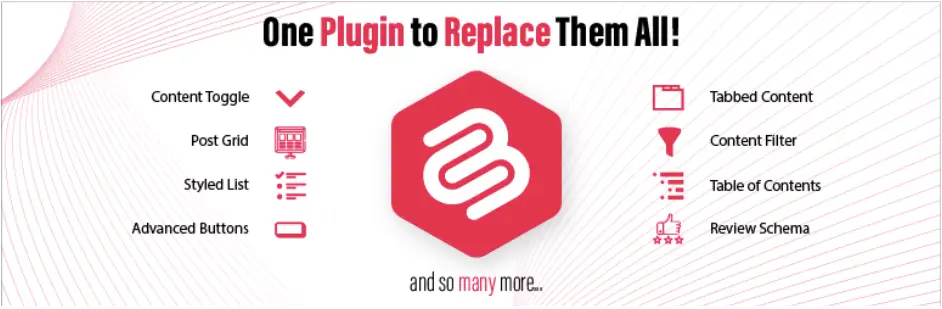
If you want attractive blocks for text and media, Ultimate Blocks is a good choice. You can use Styled Lists with icons to make bullet points stand out or add Notification Boxes for tips. These small touches make plain content look professional without writing code.
For example, a writer creating a guide can add dividers and colors, turning a simple post into something more visual. This is useful for anyone who wants their content to look more polished and eye-catching.
Learn how to create tabs in WordPress for content organization.
b. Blog Post Writing
Bloggers benefit a lot from Ultimate Blocks because it has features that make writing and reading easier. The Table of Contents block helps with long posts by auto-linking sections. The Star Rating block is handy for quick product reviews, and the Expand block lets you hide spoilers or extra details.
Travel bloggers often use Image Sliders to show trip photos in an engaging way. Many writers have already found it a reliable sidekick for making their blog posts more interesting and SEO-friendly.

c. Minimalistic Web Design
If you like clean and simple website designs, Ultimate Blocks works well. Its lightweight blocks avoid clutter and keep sites fast. You can even turn off extra features and just use basics like Heading and Divider blocks for neat layouts. For example, a personal site owner used the Timeline block to build a sleek online resume. This makes it perfect for people who prefer function over flashy designs.
d. Content Marketing
Content marketers find the real value of Ultimate Blocks. It has lots of custom blocks to take your content marketing effort to a new height. For example, the Call-to-Action block can help encourage sign-ups or clicks, while the Countdown block creates urgency for limited-time offers.
The Social Share block makes posts easy to share, and the Review block with schema helps track engagement. These small but powerful tools make it easier to run campaigns without using heavy or expensive plugins.

e. Craft Fast-Loading Web Pages
Ultimate Blocks is built to be lightweight, so it only loads scripts for the blocks you use. This keeps websites fast and smooth. In tests, pages with 10 blocks still loaded in under two seconds. For people using shared hosting or aiming for high Google rankings, this is a big advantage. Fast-loading pages not only improve user experience but also help with SEO.
f. Design Landing Pages with Block-Based Themes
If you build landing pages on block-based themes like Twenty Twenty-Four, Ultimate Blocks is a great match. You can use Post Grid blocks to show posts, Testimonial blocks to build trust, and Call-to-Action blocks to collect sign-ups. The Pro version also offers pagination for cleaner layouts.
Many users often utilize the plugin to create lead pages quickly, and it blends smoothly with WordPress block themes. This makes it a solid choice for anyone building simple but effective landing pages.

Conclusion
Ultimate Blocks is a solid choice if you want simple, SEO-friendly blocks without slowing down your site. I have tried my best to cover everything in this article regarding the advantages and limitations of the plugin, so it becomes easier for you to research the plugin and make a rightful decision.
I will keep exploring lots of other plugins, one by one, on this website. So, if you are planning to maintain your site on WordPress, regularly visiting my blog post will really be helpful for you to get new tips and suggestions.
If there is any topic on your mind that you would like me to cover, please mention it in the comment box below. You can even send me the topic through the live chat box.
Finally, if you have any opinion about the Ultimate Blocks plugin, kindly let me know through the comment box below. This will encourage me to keep writing about more and more plugins in the days ahead.

